Pages

Ads 468x60px

Thursday, 13 December 2012

How to Enable GodMode in Windows 8

Windows 7 users were delighted when they found out about a secret feature called GodMode. It basically lets you create a folder with a special name that somehow then gives you access to just about all of the controls, options and settings for the OS.
Luckily, you can enable GodMode in Windows 8 too! To get started, just create a folder on the desktop and name it whatever you like. After that, right-click and it and choose Rename. Now just add the following to the end of the folder name:
.{ED7BA470-8E54-465E-825C-99712043E01C}
As you can see, you need to include the . before the opening bracket. Here’s my mine looks like:
All Settings.{ED7BA470-8E54-465E-825C-99712043E01C}
godmode windows 8
When you do this, the icon on the folder changes into one that is exactly the same as the Control Panel.
windows 8 settings
However, if you click on the new GodMode icon, you’ll get a folder with a bunch of links to all kinds of settings on Windows 8. It’s nice because it even breaks it down by category.
godmode settings
Now you can access every single setting and option in Windows 8 from one folder! So if you are having a hard time finding a particular setting or control panel item, just open this folder and do a search. It’s great because you can narrow down the huge list by typing in a few keywords.
search settings
Sweet! So that’s how you enable GodMode in Windows 8. However, there is also another way to get access to a lot of settings in Windows 8. The new Start Screen has a built-in search option that lets you search all system settings. Go to the Start Screen and type in the word Settings.
search settings
You get a pretty big list of 91 settings you can adjust. Just swipe with your finger or scroll with your mouse to access all of the settings.
settings windows 8
Pretty cool! So those are two ways you can make it easier to find system settings on Windows 8: GodMode and via the search option on the Charms bar

Prevent Google Chrome from Opening PDF Files in the Browser

I’ve been working on a project lately where I have to download a lot of PDFs from a website and then go through them and highlight text, add comments, etc. In Google Chrome, whenever I click on a link to a PDF file, it just opens the file inside the browser window.
chrome pdf viewer
This is pretty convenient for most people and it was fine for me until I started this project. Other than viewing the PDF file, you really can’t do anything else with the file if it’s opened in Chrome. So basically, I was clicking on the save button, saving it to the hard drive and then opening it from there. After a while, this started to become a little annoying and time consuming.
save pdf chrome
I was using Adobe Acrobat on my Mac to make the edits to the PDF files, so I wanted to use that instead of Chrome. Finally, after playing around with stuff for a while, I managed to figure out a good solution. In order to prevent Chrome from opening the PDF files, I had to disable the Chrome PDF Viewer. Here’s how you can do it. Open Chrome and paste the following into the address bar:
chrome://plugins/
Now find Chrome PDF Viewer and click on the Disable link.
disable pdf viewer
Once you disable Chrome PDF Viewer, when you click on a link for a PDF file, it will now just download it like a normal file as shown below:
download pdf
Now when you click on the file, it will automatically open in the default application set for opening PDF files on your machine. Note that in addition to disabling Chrome PDF Viewer, you might also have to disable Adobe PDF Viewer in the Chrome plug-ins section. When you install Adobe Acrobat, it also installs a PDF viewer in Chrome too, so if you want to open the PDF files in the desktop Adobe program, you’ll need to disable all PDF viewers that are Chrome plug-ins.
In addition, you may have to change the default program for opening PDF files on your computer. For example, on my Mac, the PDF files were opening in Preview rather than Adobe Acrobat. To change the PDF viewer on a Mac, you have to right-click on a PDF file and choose Get Info.

get info mac
Then you have to expand the Open with section and change the program to the desired PDF viewer of your choice. Then click the Change All button, which will ensure all PDF files open using that program.
open with mac
For Windows users, you can check out my previous posts on changing the default program to open a file with and setting default programs in Windows 7. Hopefully, if you are one of those folks who doesn’t need the default PDF viewer in Chrome, you can use the technique above to solve the problem

OTT Explains – Is It Better to Log Into Websites using Facebook, Google or Twitter Accounts

Over the years, you may have noticed that a lot of websites let you use your Facebook, Google or Twitter account to log into their websites. You don’t have to create a new username or password and a lot of the sites will automatically share your activity on Facebook if you give authorization.
This makes logging into those websites very convenient because you don’t have to create another set of usernames and passwords that you have to remember. For example, you can log into sites like rottentomatoes.com, sears.com, citysearch.com, stackoverflow.com, friendfeed.com, getsatisfaction.com and a million other sites using Facebook, Google or Twitter.
login using facebook
By far, the most popular option is Facebook. Facebook released a set of APIs in 2008 called Facebook Connect that changed how people log into third-party websites. Just about every major sites now lets you use Facebook Connect to log into their websites.
facebook connect
The idea has exploded in popularity and you might be logging into a lot of websites using Facebook without even thinking about it. However, like with everything in the world, there are advantages and disadvantages to this type of login.

Advantages

The advantages of logging into multiple websites using the same credentials are fairly clear. Here’s what I find to be most useful:
1. No need to remember multiple sets of usernames and passwords for each site.
2. Credentials are less likely to be hacked since they are securely stored with Facebook, Google, or Twitter.
3. Sites are customized to use the Facebook API and therefore make it super easy to share your activity on those sites with your friends and family.
These are the three main advantages to using your current Facebook, Google or Twitter account to log into a third-party website. One of the main benefits I see is the fact that your credentials are more secure with the likes of Google and Facebook. There are a lot of websites that have great services, but don’t follow strict security procedures and can lose your information to hackers. I’ve gotten many emails over the years from companies that had their databases hacked and therefore my account was compromised.

Disadvantages

You probably have heard the phrase “Don’t keep all your eggs in one basket” and you’ve probably read online at least once not to use the same password for every website you log into. There are reasons why you hear these statements over and over again.
The disadvantages to using Facebook Connect to login to every website you visit or comment on also are pretty clear:
1. Facebook, Google, Twitter become a single point of failure. If you lose access to any of those accounts, you lose access to all of the sites that rely on that account.
2. Similarly, if your account is hacked, the hacker could potentially see what apps you use on Facebook, etc and then log into those websites as you.
That’s basically the only disadvantage, but it’s a really big one. The fact that you are entrusting that much information to one particular site or service could cause privacy issues later on. Does Facebook, Google and Twitter get to keep all of that information about your activity forever? What happens if they sell it to someone else later on? It’s definitely risky if you don’t like one company to have access to so much information about you.

Conclusion

In the end, you want to diversify. I personally have some websites where I login using Facebook Connect, others using Twitter, others via Google and the rest using the regular website login. This way you’re not relying on one service or company for logging into a bunch of different sites.
Also, note that using Facebook to log into other sites will reduce your privacy because of how data can be posted back and forth between the site and Facebook. If you log into a website using Google or Twitter, there is less chance of that activity being posted to your Twitter feed or on Google+. For whatever reason, Facebook apps that you authorize tend to collect a lot more information and also post that info to your Facebook account.
Even though you probably haven’t heard of many horror stories yet, there are bound to be cases of hacking, theft, outages, lost access, etc as this type of login option becomes more popular. As with everything, try to stay diversified and you’ll be safer on the Internet. Do you use Facebook, Twitter or Google to log into websites

Multi Monitor Tricks For Windows 8

Lately, we have sharing a lot of quality stuff on Windows 8. Windows 8 supports multiple monitor configuration which is one of its many good features. And you can check out some of the multi monitor tricks for Windows 8 to make the best of this feature.
Once you have enable multiple monitors on Windows 8, you are good to try out these tricks. One of the biggest advantage of this feature is that it saves a lot of your time and efforts. And these Windows 8 multi monitor tricks is like delicious icing on the cake.

Multi Monitor Tricks For Windows 8 – Dual Monitor Tips and Tricks

Keyboard Shortcuts
I have covered this in the Windows 8 hidden features compilation. You can easily push one application from one screen to other using your keyboard. And it hardly take a second. In order to move an application from one screen to other, use Windows key + Arrows and you can even push the complete screen from one monitor to another by using Windows key + Page Up / Down.
Multiple Taskbar

This is one of a major improvements from the Window 7 dual monitor technology. Unlike Windows 7, here you can have individual task bars for each monitor. So, you need not switch on to your primary monitor to access Taskbar. It surely makes things simpler. In order to do that, just right click on the taskbar and click on the Properties option to customize Taskbar on Windows 8.
Different Wallpapers and Slideshows
Windows 8 lets you have different wallpapers and slideshows for each displays. You just have to get on to required monitor, right click on the desktop and change the background and screensaver the way you do normally. Its just that each monitor will have its own settings set.
Using multiple monitors isn’t that simple as it sounds as you need to get your hands dirty on it in order to perfect it. There are many more multi monitor tips and tricks that are worth sharing. If you are aware of any, please do share with us.

How To Play MKV Files In Windows Media Player On Windows 8

I know few people who prefer using Windows Media Player over many other media players like VLC. And the fact that Windows Media Player does not play all the video formats does hurt.
And if you have recently switched to Windows 8, then here is the way to play MKV files in Windows Media Player on Windows 8. Its pretty straight forward. Below are the complete steps to play MKV files.

Steps To Play MKV Files In Windows Media Player On Windows 8

  • Lets say that you have a MKV file on your machine, so double click on it in order to run it
  • Now it would ask you to open this file using any other app. On the same dialog box, click on More Options link
  • From the presented list, choose Windows Media Player
  • Now you would get the below message prompting if you wish to play that file or not. Just click on Yes
 

  • Then it would tell you that you cannot play the MKV file. And the only way to play it is to download codec and then play it
  • You can download the codec from here
  • Once downloaded, go ahead and install the program
  • Once the installation completes, it would direct you to web page where you can download the required components based on your OS (32 bit or x64 bit)
  • It would also pop out the interface where you can customize the options
  • Once things are done, you are good to start playing MKV files on Windows Media Player

Thursday, 6 December 2012

3G Settings for Airtel - Vodafone - Idea - BSNL - Docomo - and Many More

After much hype and hoopla over spectrum allocation finally we now have 3G services across India from private players along with state-owned BSNL and MTNL. The private players including Bharati Airtel, Vodafone, Idea, Reliance, STel, Aircel and Tata Docomo is offering high bandwidth third-generation telephony services clubbed with various data packs in the circles where they have won license to operate. The state-owned MTNL and pan India operator BSNL have been in market much before the introduction of 3G services by private players and is doing well.


Be it smartphone or a tablet device you need to activate 3G on your existing SIM card to get settings automatically for using 3G data services. While most of the smartphones can automatically enable the settings you get from service providers there may be situations where you have to manually edit and configure 3G APN settings.
In order to use 3G services you need to choose and enable 3G network on your handset (UMTS/Dual mode). Once you have enabled 3G and your phone is ready to accept 3G network data you can go ahead edit or set up a new Access Point Name (APN) profile. Here is step-by-step guide on how to configure/ create a new APN profile in iOS (iPhone, iPad), Android and Symbian.

How to configure data network in iOS:

1. Go to Settings> General> Network.
2. Under “Network” settings select “Cellular Data Network”.
3. Add APN (below post).
4. Leave Username and Password blank.
5. Done
iPhone-iOS-APN
How to configure APN settings in Android:

1.Go to Menu> Settings> Wireless & networks.
2. Now select “Mobile networks” and then “Access Point Names”.
3. Click “Menu” and then “New APN”.
4. Enter Name and APN (below).
5. Leave Username, Password and other entries blank.
6. Save and activate.
Android-APN-Settings
 How to configure APN settings in Symbian:

1. Go to Menu > Settings > Configurations.
2. Select Personal Configuration settings > Add.
3. Fill in Account Name.
4. Select Access Point Settings > Bearer Settings.
5. Enter the Access Point Name (APN).
6. Leave Username and Password blank.
7. Go back to Personal Configuration menu.
8. Select the Account Name and click Option and choose Activate.
9. Done.
 1. BSNL 3G APN Settings


BSNL with license to operate pan India expect for Delhi and Mumbai where MTNL will be in place. Try to set the following APN under mobile phone or data card settings,
Name: Airtel
APN: bsnlnet
gprssouth.cellone.in (South Zone)
gprsnorth.cellone.in (North Zone)
Leave all other settings blank

2. Airtel 3G APN Settings


Bharati Airtel has won 3G spectrum license to operate in Delhi, Mumbai, Andhra Pradesh, Karnataka, Tamil Nadu, Uttar Pradesh (West), Rajasthan, West Bengal, Himachal Pradesh, Bihar, Assam, North East, Jammu & Kashmir. Go to your phones mobile network settings and add a new connection or edit existing network,
To activate send SMS as 3G to 121
Name: Airtel
APN: airtelgprs.com
Leave all other settings blank
 

3. Vodafone 3G APN Settings 


Vodafone won spectrum for Delhi, Mumbai, Maharashtra, Gujarat, Tamil Nadu, Kolkata, Haryana, West Bengal and Uttar Pradesh (East).
To activate send SMS ‘ACT 3G’ to 111
Name: Vodafone
APN: www
Leave all other settings blank
 

 4. Tata Docomo 3G APN Settings (Updated)


Tata Docomo won spectrum licence and is operating in Maharashtra, Gujarat, Karnataka, Kerala, Punjab, Haryana, Uttar Pradesh (West), Rajasthan and Madhya Pradesh. Read our Tata Docomo 3G
To activate 3G SMS ACT3G to 53333
Name: Tata Docomo
APN: Tata.Docomo.Internet
Leave all other settings blank

5. Reliance 3G APN Settings 


Reliance Communications has won spectrum in Delhi, Mumbai, Kolkata, Punjab, Rajasthan, Madhya Pradesh, West Bengal, Himachal Pradesh, Bihar, Orissa, Assam, North East, Jammu & Kashmir.
To activate send SMS to 51234 with plan code.
Name: Airtel
APN: rcomnet” or “smarinet”
Leave all other settings blank
 

6. Aircel 3G APN Settings 


Aircel has won spectrum license in Andhra Pradesh, Karnataka, Tamil Nadu, Kolkata, Kerala, Punjab, Uttar Pradesh (East), West Bengal, Bihar, Orissa, Assam, North East and Jammu & Kashmir choose 3G network on your handset (UMTS/Dual) to access 3G service Otherwise, you can access portal using same the GPRS connections settings.
To activate send “START 3G” to 121
Name: Airtel
APN: aircelgprs
Leave all other settings blank
 

7. Idea 3G APN Settings (Updated) 


Idea cellular has won spectrum license in Maharashtra, Gujarat, Andhra Pradesh, Kerala, Punjab, Haryana, Uttar Pradesh (E), Uttar Pradesh (W), Madhya Pradesh, Himachal Pradesh, and Jammu & Kashmir.
To activate 3G SMS ACT3G to 12345
Name: Idea
APN: internet
Leave all other settings blank
 

 8. MTNL 3G APN Settings


To activate MTNL 3G
Prepaid : SMS `ACT 3G` to 444
Postpaid : Dial 1503
Name: MTNL
APN: “pps3g” (prepaid) and “mtnl3g” (postpaid).
Leave all other settings blank
The setting can be configured on all nokia s40 , s60 , symbian , samsung galaxy smart phones , HTC , LG , android based mobiles etc 

Thursday, 8 November 2012

PC Shutdown Shortcut (one-click turn off )

Ever calculate how many clicks required to shutdown Microsoft Windows? Three clicks(Start > Turn Off computer.. > Turn Off).
 I want faster and simple way to shutdown my computer. My office PC’s keyboard does not has a “shutdown” so I added aShutdown computer shortcut on windows desktop.

Steps..

1: Right click on any blank space of windows desktop -> New -> Shortcut. A “Create Shortcut” window will open.
2: Type [shutdown.exe -s -t 0] or just copy and paste this, Click Next [It means, shutdown and wait for Zero second]
  3: Type in whatever name you like in the blank. I use “Shutdown”. Then, click “Finish” button.
4: You are done. A new shutdown shortcut is on your windows desktop!


Hey, it is not a shutdown icon like yours!

By default, the shortcut use a “unknown application” icon. We can change it, of course.

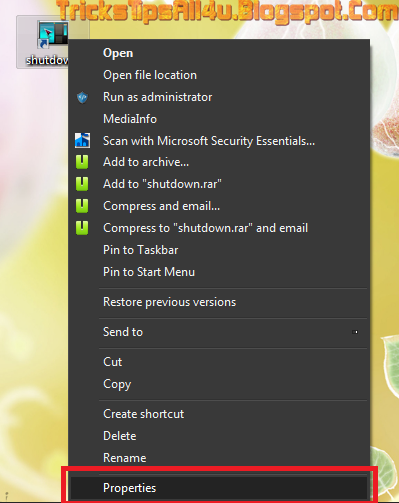
5: Right click on the Shutdown shortcut icon, click “Properties” -> click “Change icon…”. It will popup an alert, ignore it by clicking “Ok” button. You will get a list of icons to choose from
 6: Spot the Shutdown icon? Select it and click “OK” button then click "Apply" & again click "OK", Done.
 Now, only need one click to shutdown computer.
BTW do not get confused that which wallpaper i am using, i am using botanicula wallpaper, if you like it and want to download here is the link.
Related Posts Plugin for WordPress, Blogger...
trickstipsall4u.blogspot.com Webutation
MyFreeCopyright.com Registered & Protected

M

ad

Contact Me

flagcounter

free counters