Pages

Ads 468x60px

Sunday, 9 September 2012

Bandicam Recording Tutorial

1. Select the Recording mode

Choose 'DirectX/OpenGL window' mode to record a game, and choose 'Rectangle on a screen' mode to record a PC screen.
Select the recording target

2. Recording shot - DirectX/OpenGL programs

Start the DirectX/OpenGL programs, and click 'Record' button. You can see the recording status.
Recording - directx/opengl programs

3. Recording shot - PC screen

Choose the 'Rectangle on a screen' mode, and then you can record anything in your PC screen.
Recording - PC screen

4. Bandicam languages

You can change the Bandicam language. Click 'Advanced' button under the 'General' tab.
Change Bandicam languages

5. Auto Complete Recording

You can start New recording or Stop recording or Shutdown your computer by recording Time/File Size.
Auto Complete Recording

6. Video Format Settings

You can change the Video Size, FPS, Codec, Bitrate and Quality.
Video Format Settings

7. BandiFix (Free avi recovery program)

You can recover a corrupted/broken AVI file that can not be played.
Bandifix - free broken avi file recovery program
 Bandicam 1.7.4 Full+Keys


Change the "Video Size" to make 1080p/720p YouTube videos

To make 1080p/720p/480p/360p YouTube videos, you have to change the video size of Bandicam

how to make 1080p YouTube videos

1. To make 1080p YouTube videos,

Click the 'Settings' button under the 'Video' tab of the Bandicam, and change the video size from "Full Size" to "Fit Height", and then put "0*1080"
    - Caution: If you have a lag with 1080p video, please choose the default Video Size (Full Size)

2. To make 720p YouTube videos,

Click the 'Settings' button under the 'Video' tab of the Bandicam, and change the video size from "Full Size" to "Fit Height", and then put "0*720p
Caution: If you have a lag with 720p video, please choose the default Video Size (Full Size)

3. To make 480p YouTube videos,

Click the 'Settings' button under the 'Video' tab of the Bandicam, and change the video size from "Full Size" to "Fit Height", and then put "0*480"

4. To make 360p YouTube videos,

Click the 'Settings' button under the 'Video' tab of the Bandicam, and change the video size from "Full Size" to "Fit Height", and then put "0*360"


Choose the "YouTube Presets" to make 1080p/720p YouTube videos

To make 720p/480p/360p YouTube videos, you can simply choose "YouTube Presets".
how to make 720p YouTube videos

1. To make 720p YouTube videos,

To make 720p video for YouTube, go to Video settings menu of Bandicam, and choose "YouTube (720p)" preset.
    - Caution: If you have a lag with 720p video, please choose the 'Default' preset

2. To make 480p YouTube videos,

To make 480p video for YouTube, go to Video settings menu of Bandicam, and choose "YouTube (480p)" preset.

3. To make 360p YouTube videos,

To make 360p video for YouTube, go to Video settings menu of Bandicam, and choose "YouTube (360p)" preset.

How to Download Youtube 720p Videos

Youtube is only one video website where is million million video . Be member and upload your video to share .
Do you know how to download youtube video in HD ? It's Easy .
You can use IDM ( Internet Download Manager )  to download youtube video .
IDM is a popular Download Managerthat download faster than any other Download Manager

After download Install it ( IDM 6.03 Silent Installer does not appear during install )
Now follow this way step by step .


Note: If you use anti-virus ( Kaspersky )  then you may unable to download with IDM without mozzila firefox. For solution disable anti-virus protection. Click on the anti virus icon of the taskbar and pause protection.


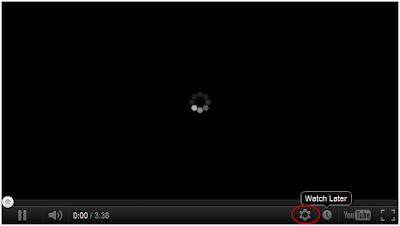
Step 1:

 Click play button to run the player .


Step 2:

click on the symbol. see the screenshot


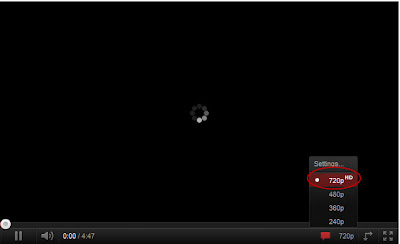
Step 3:

 select 720p to download in high quality ( if you use slow internet connection you can select 240p to watch the video. 240p is lower quality so it loads quickly )


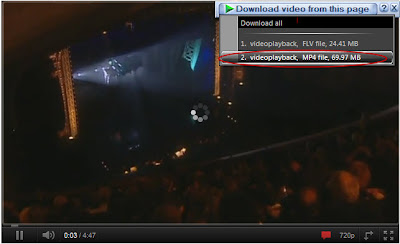
Step 4:

 After waiting a few second IDM Download bar appears on the head of the player. Then click on "Download this video" button . Then select " MP4 file, .....MB " to download in HD.


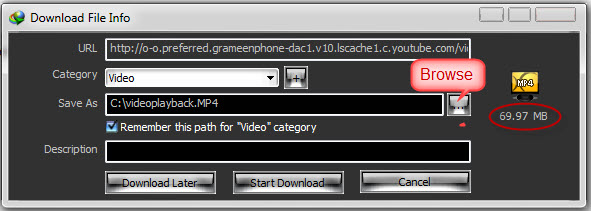
Step 5:

 Click on browse button " ... " select the location, where you save the file .

Below the file appears the file size ( example: 16.32 MB ). You wait until the file size appears then click on start button to start download and enjoy.

Step 6:

Then click on "Start Download" tab .

Note 1:

( When you search in youtube search box then type HD or 720p or 1080p ( example: Bad romance HD ) see the screenshot .
Those files contain HD there will appeare a symbol of " HD " . See the screenshot .

Posting to a Blog Using Microsoft Word 2007 [Tips]

There are many new features in the Microsoft Office 2007. Besides the new interface, this word program also come with the feature that help blogger. Using Microsoft office 2007 you can post directly to your blog. Now this office suite version has a features like windows live writer. With this feature you can create and publish your article to your blog without opening your blog using internet browser.
Microsoft Office 2007 support  6 blog platform,  Windows Live Space, Blogger, Sharepoint Blog, Community Server, Typepad, and WordPress. If you use one of the platform you can now easily posting to your blog using Microsoft office 2007 and you can use this program as alternative software to windows live writer.
Blog Posting Using Microsoft Word 1
Follow These Steps to Post an Article to your Blog Using Microsoft Word 2007
  1. Write or open an article using Microsoft Word 2007.
  2. Click Office Button then select “Publish – Blog” to publish the article into your Blog.
  3. On the next steps will appear dialogue box to register a Blog Account. Click on “Register Now”  Button to set-up connections between  Microsoft Word 2007 and Your blog.
    Blog Posting Using Microsoft Word
  4. Choose your blog platform then click next.
  5. Enter your blog URL in the Blog Post URL form and enter your blog User Name and Password and then click ok.  it’s will take a few second.
  6. To publish your article click Blog Post menu then click Publish.
If you want post an article again, you can click Office button – New then Select New Blog Post. Now with this office 2007 features you can post an article to your blog like using windows live writer. Happy blogging

Add Google Talk Badge to Your Blog

A Google Talk chatback badge will let visitors to your web page chat with you. But the google talk badget not use animation picture like badge on Yahoo Messenget, it only show text with callouts like this:
google-talk-badge
How to get google talk badge
It easy, Goto Google Talk Badge Official Site then with your google account. copy and paste the HTML code in the below of page into your web page or blog. If the site that hosts your web page does not support direct HTML editing or embedded frames then click ‘Edit’ to select a style of badge that does not use frames.
How to add the badge code to your blog
For Blogspot, after login to your blogspot account goto your blog layout then in ad a widget Choose HTML/JavaScript and enter the code.
For WordPress, Login tou your wordpress blog in the appearance click widget, ad a text widget, edit then enter the code. (your wordpress themes must widget ready, if no, add the code manually)

Install Islamic Calendar Widget to Your Blog

Do You want to Islamic calender widget on your blog? You can get the hijri calendar widget in Al-habib Islamic web Services. All of  the widgets on Al-Habib website is flash-based and can be embedded on blog or website. The widget also can be embedded in many open social or community websites like MySpace, Multiply, Friendster, Ning, Hi5, iGoogle, Hadithuna, Typepad, Netvibes and more. On Al-Habib website there eighteen widget design can you choice.
The displayed hijri calendar date is based on the latest formulation of the Ummul Qura calendar of Saudi Arabia and based on the Suggested Global Islamic Calendar
How to get the Free Islamic Calender Widget:
  1. Open al-habib website and browse and choose the design that you like.
  2. Most of the islamic hijri calendar widgets below are customizable, so you can design your custom calendars or personalised calendaras. You can set size, look or color of the calendar to conform with your blogs or websites .
    calender-islamic-widgets
  3. After done with all setting, Click BLOG ME button (with Plus icon)
  4. Copy the code and embed in your blog or you can add the widget automatically to your blog by clicking blog platform and follow the instructions.
 

WordPress Themes Hack

This wordpress themes hack has tested. Modifying the wordpress themes code can cause your wordpress themes error. We cannot guarantee that problems resulting from modifications the wordpress themes. Use this tutorial at your own risk. I have tried all that mentioned here in wordpress 2.7, wordpress 2.7.1 and wordpress 2.8 and all wordked.
A. Embed Google Adsense In First WordPress Post
To place an ad after the first post title in your WordPress blog main page

  1. Open the WordPress admin control panel and navigate to: Presentation > Theme Editor
  2. Select the Main Index Template (index.php) from the list of templates on the right.
  3. In the Main Index Template, find the line that starts with:
    <?php if (have_posts())
  4. Add the following line above it:
    <?php $count = 1; ?>
  5. Next, find the line that starts with:
    <?php the_content
  6. After the closing tag ?> for that section (it may wrap to multiple lines), add the following code:
    <?php if ($count == 1) : ?>
    – Insert your Google AdSense code here –
    <?php endif; $count++; ?>
  7. Click Update File.
This places the ad within the first post.  If instead you want the ad to appear between the first and second post, add the code from step 6 after the closing </div> tag for the “entry” div that contains the line <?php the_content.
Source: http://www.devtopics.com/embed-google-ad-in-first-wordpress-post/
B. Adding Comment Numbers To Your WordPress Theme
Here are the steps you can take to easily add numbers to your WordPress theme’s comments section.
  1. First thing you will want to do is create a backup your comments.php file.
  2. Locate the comments.php file.
  3. Locate the code that starts the comment loop. It will look something like this:
    <?php if ( $comments ) : ?>
  4. Place this code immediately above the code in Step 3:
    <?php $i = 0; ?>
  5. Now locate the code that looks like this:
    <?php foreach ($comments as $comment) : ?>
  6. Placed this code immediately below the code in Step 5:
    <?php $i++; ?>
  7. Now use this code where you want to display your comment numbers:
    <span class=”count”>
    <?php echo $i; ?>
    </span>
  8. Click Save.
  9. Now go to your stylesheet (style.css) and place this code anywhere on the stylesheet (probably best placed in the comments section):
    .count {
    float:right;
    padding: 10px;
    font-size:18px;
    color:#000000;
    }
You can adjust the stylesheet to fit your comment numbers into the placement and appearance that you want them to have.
Source: http://wphacks.com/how-to-adding-comment-numbers-to-your-wordpress-theme
C. Separate WordPress Comments and Trackbacks
  1. Access your comments.php file and locate the following code:
    <?php foreach ($comments as $comment) : ?>
  2. Immediately after the above code, you’ll want to place this code:
    <?php $comment_type = get_comment_type(); ?>
    <?php if($comment_type == ‘comment’) { ?>
  3. Next, you’ll want to scroll down a little bit and locate the following code:
    <?php endforeach; /* end for each comment */ ?>
  4. Immediately before the above code, you’ll want to place this code:
    <?php } /* End of is_comment statement */ ?>
    This will filter out all of the trackbacks and pingbacks from your main comments loop. Now we need to create a second comments loop to display the trackbacks and pingbacks.
  5. Almost immediately below the code from step 2 you should find this code:
    <?php else : // this is displayed if there are no comments so far ?>
    Immediately before the above code, you’ll want to place this code:
    <h3>Trackbacks</h3>
    <ol>
    <?php foreach ($comments as $comment) : ?>
    <?php $comment_type = get_comment_type(); ?>
    <?php if($comment_type != ‘comment’) { ?>
    <li><?php comment_author_link() ?></li>
    <?php } ?>
    <?php endforeach; ?>
    </ol>
    You can adjust this code to display how you want to, including using a different header if you have a specific look for your header 3.
Source: http://wphacks.com/how-to-separate-wordpress-comments-and-trackbacks
D. Display the most commented posts
Copy and paste following code to your wordpress themes to display most commented post.
<h2>Most commented posts</h2>
<ul>
<?php
$result = $wpdb->get_results(“SELECT comment_count,ID,post_title, post_date FROM $wpdb->posts ORDER BY comment_count DESC LIMIT 0 , 10″);
foreach ($result as $topten) {
$postid = $topten->ID;
$title = $topten->post_title;
$commentcount = $topten->comment_count;
if ($commentcount != 0) {
?>
<li><a href=”<?php echo get_permalink($postid); ?>”><?php echo $title ?></a></li>
<?php }
}
?>
Source: http://www.wprecipes.com/how-to-display-the-most-commented-posts-of-2008
E. WordPress Recent Posts from specific category
<ul>
<?php $recent = new WP_Query(“cat=catID&showposts=10″); while($recent->have_posts()) : $recent->the_post();?>
<li><a href=”<?php the_permalink() ?>” rel=”bookmark”>
<?php the_title(); ?>
</a></li>
<?php endwhile; ?>
</ul>
Replace catID with post category to be displayed.
Related Posts Plugin for WordPress, Blogger...
trickstipsall4u.blogspot.com Webutation
MyFreeCopyright.com Registered & Protected

M

ad

Contact Me

flagcounter

free counters